
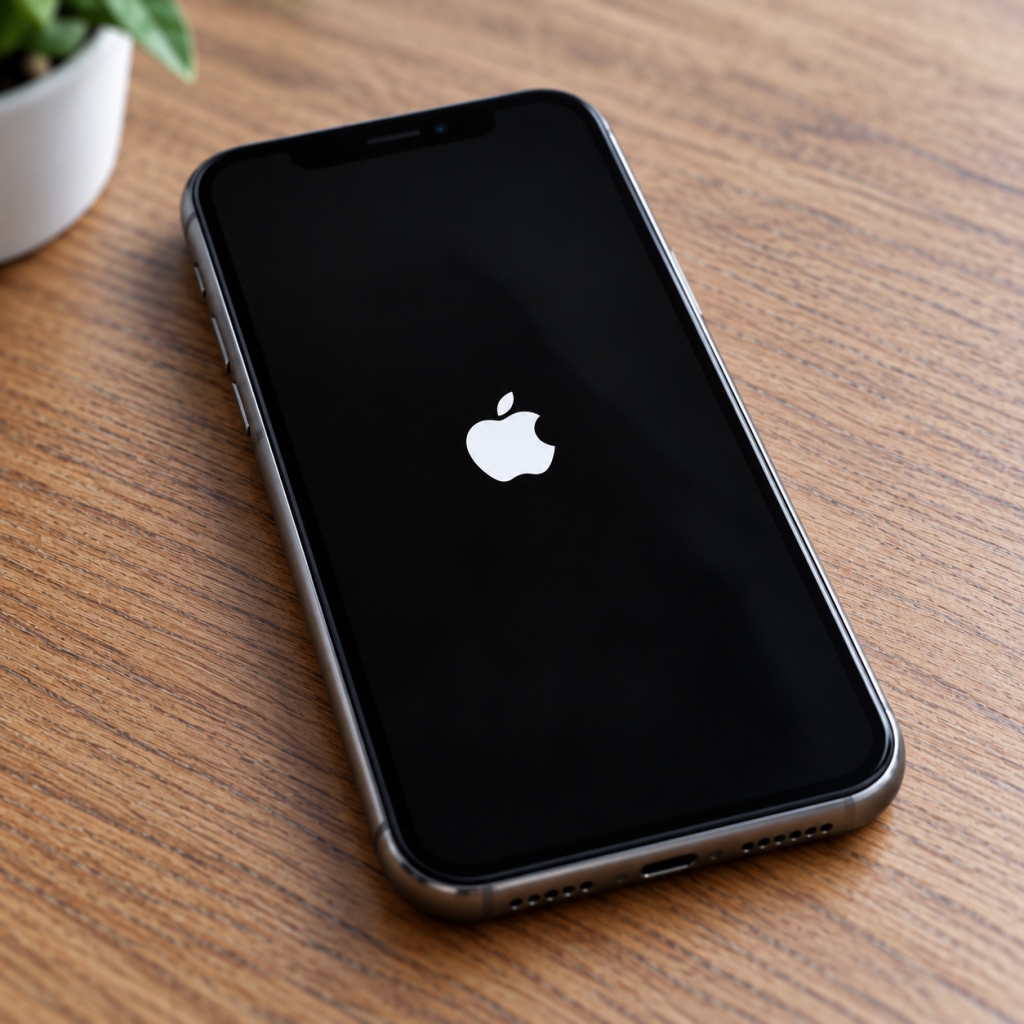
iPhone Stuck on the Apple Logo? Here's How to Fix It
You switch on your iPhone, the Apple logo appears, and then nothing happens. It stays on the screen, keeps restarting or never reaches your Home Screen.
It's frustrating, especially when your photos, messages and important apps are all on the phone.
The good news is that an iPhone stuck on the Apple logo doesn't always mean it's permanently broken. A software issue may be responsible, and there are several things you can try before considering a replacement.
At Hi-Tech Fones in Farnworth, Bolton, we help local customers investigate iPhone startup problems and explore suitable repair options.
Explore iPhone Repair Options →Quick Answer: How Do You Fix an iPhone Stuck on the Apple Logo?
If your iPhone is stuck on the Apple logo, start with a force restart using the correct button combination for your model.
If that doesn't work, connect the phone to a Mac or Windows computer and try Recovery Mode. Choosing Update may reinstall iOS without erasing your data, although data preservation isn't guaranteed.
If the phone still won't start, a hardware fault or more serious software problem may need professional attention.
Why Is My iPhone Stuck on the Apple Logo?
When an iPhone gets stuck during startup, it usually means the phone hasn't been able to finish loading iOS.
This may happen once after a software problem, or repeatedly in what's known as a boot loop.
Failed iOS Update
An interrupted or unsuccessful software update can prevent the iPhone from completing its normal startup process.
Temporary Software Glitch
A problem with the operating system or an unexpected crash can occasionally leave the device frozen during startup.
Storage Problems
Severely limited storage or storage-related faults may contribute to problems loading iOS or completing an update.
Hardware Fault
Damage to internal components, storage hardware or other parts can sometimes cause repeated startup failures.
What Is an iPhone Boot Loop?
A boot loop happens when your iPhone repeatedly tries to start, shows the Apple logo, switches off and then starts again without reaching the Lock Screen.
A phone stuck on a single Apple logo and one that repeatedly restarts can have similar causes, but they may need different troubleshooting.
What to Try Before Repairing Your iPhone
Before attempting a full software restore, start with these straightforward checks.
Allow an Update to Finish
If your iPhone is showing an Apple logo with a progress bar and you've recently started an update, give it time to complete. Avoid interrupting a progress bar that is still moving.
Check the Battery and Charger
If the phone may have run out of power, connect it to a known-working charger. A charging problem can sometimes make startup troubleshooting more difficult.
Disconnect Accessories
Remove unnecessary cables and accessories, then try restarting the phone. Keep only essential connections attached during troubleshooting.
Try a Force Restart
If the phone remains frozen, use the correct force restart button combination for your iPhone model.
How to Force Restart an iPhone Stuck on the Apple Logo
A force restart is one of the first things worth trying when an iPhone freezes during startup.
It doesn't normally erase your personal data and can sometimes clear a temporary software issue.
Find the Instructions for Your iPhone Model
iPhone 8 and Later, Including Face ID Models
- Quickly press and release the Volume Up button.
- Quickly press and release the Volume Down button.
- Press and hold the Side Button until the Apple logo appears, then release it.
iPhone 7 and iPhone 7 Plus
Press and hold the Side Button and Volume Down button together until the Apple logo appears.
iPhone 6s, First-Generation iPhone SE and Earlier
Press and hold the Home Button and the Side or Top Button together until the Apple logo appears.
If your phone starts normally afterwards, check for available software updates and make a backup of your important data.
How to Fix an iPhone Stuck on the Apple Logo Using Recovery Mode
If a force restart doesn't work, Recovery Mode allows a computer to attempt to reinstall iOS.
This can be useful after a failed update or when your iPhone repeatedly fails to start.
What You'll Need
Step-by-Step Recovery Mode Guide
Connect Your iPhone to a Computer
Use a compatible cable and open Finder on a supported Mac, or Apple Devices or iTunes on Windows, depending on your setup.
Enter Recovery Mode
Use the button sequence for your iPhone model. For iPhone 8 and later, quickly press Volume Up, quickly press Volume Down, then hold the Side Button until the recovery mode screen appears. Keep holding even when the Apple logo appears.
For iPhone 7 models, hold the Side or Top Button and Volume Down together. For iPhone 6s and earlier, hold the Home Button and Side or Top Button together. Continue until the recovery mode screen appears.
Choose Update First
When your computer offers Update or Restore, select Update first. This attempts to reinstall iOS while preserving personal data.
Wait for the Process to Finish
Allow the computer to download and install the software without disconnecting the phone. If the download takes too long and the iPhone exits recovery mode, you may need to enter recovery mode again.
For official guidance, see Apple's instructions for an iPhone stuck on the Apple logo.
What If Recovery Mode Doesn't Fix the Problem?
If the computer cannot update your iPhone or the phone returns to the Apple logo, the problem may require further investigation.
Check for Connection Problems
Try another compatible USB cable or computer port if your iPhone keeps disconnecting during the recovery process. A faulty connection can interrupt a software update.
Understand the Difference Between Update and Restore
Update attempts to reinstall iOS without erasing personal data. Restore erases the device and reinstalls the operating system.
If Update fails, don't rush into Restore if you have important photos, messages or other information that hasn't been backed up.
What About DFU Mode?
Device Firmware Update (DFU) mode is a more advanced recovery method sometimes used for serious software problems.
The steps vary between iPhone models, and a DFU restore erases the device. For that reason, it's generally better to try standard Recovery Mode first and seek professional advice if your data is important.
Can You Recover Data Before Restoring?
If you already have an iCloud or computer backup, you may be able to recover your information after restoring or replacing the phone.
If your device cannot start and no backup exists, recovery may be difficult or impossible. Modern iPhones encrypt their data, so a repair shop cannot guarantee that photos and files can be recovered from a non-working device.
When Should You Get Your iPhone Professionally Repaired?
Some startup problems cannot be fixed through software troubleshooting alone. A damaged internal component or another hardware fault may be preventing your iPhone from starting properly.
Signs You May Need Professional Help
Repeated Boot Loops
Your iPhone keeps displaying the Apple logo and restarting without reaching the Lock Screen.
Recovery Mode Fails
Your computer cannot complete the iOS update, or the same startup problem returns afterwards.
Physical or Liquid Damage
The problem started after a drop, exposure to liquid or another incident that may have damaged internal components.
Important Data at Risk
You have valuable photos or files without a backup and want advice before attempting an erase or restore.
Benefits of Getting Your iPhone Checked
A professional assessment can help identify whether your iPhone is struggling with corrupted software, a battery fault or damaged internal components. Instead of repeatedly trying resets that may not solve the issue, a technician can explain the likely cause and available repair options, helping you decide what to do next.
Why Choose Hi-Tech Fones in Bolton?
At Hi-Tech Fones, we help customers across Farnworth and Bolton with iPhone faults and everyday repair problems. If your device is stuck on the Apple logo, our team can assess the issue and discuss suitable next steps. We aim to offer straightforward advice so you can make an informed decision about repairing your phone.
Local iPhone Repair Options
Based in Farnworth, Hi-Tech Fones serves customers from Bolton and surrounding areas. If you're nearby, explore our iPhone repairs for Walkden or iPhone repair services near Bury.
You can also find more information about our iPhone repair services in Bolton.
Frequently Asked Questions
Why is my iPhone stuck on the Apple logo?
An iPhone can become stuck on the Apple logo because of a failed software update, corrupted iOS files, storage problems or a hardware fault. A professional assessment may be needed if the issue continues after troubleshooting.
Will a force restart fix an iPhone stuck on the Apple logo?
Sometimes. A force restart can clear temporary software glitches and doesn't normally erase your personal data. However, it may not resolve serious software corruption or hardware problems.
Can I fix my iPhone without losing my data?
Potentially. A force restart doesn't intentionally erase data, and the Update option in Recovery Mode attempts to reinstall iOS without deleting personal files. However, success isn't guaranteed, so avoid Restore if you don't have a backup and need to preserve your data.
What is the difference between Recovery Mode and DFU Mode?
Recovery Mode allows a computer to update or restore iOS when the phone cannot start normally. DFU mode is a deeper firmware recovery process. A DFU restore erases the device and should be approached carefully.
Why does my iPhone keep restarting on the Apple logo?
Repeated restarting is commonly called a boot loop. It can be caused by software errors, failed updates, storage-related problems or faulty internal components.
Should I restore my iPhone if it's stuck on the Apple logo?
Try a force restart and the Recovery Mode Update option first. Restoring erases the phone, so make sure you understand the risk to your data before proceeding.
Where can I get my iPhone repaired in Bolton?
Hi-Tech Fones is a local phone repair shop in Farnworth, Bolton. You can contact the team to discuss an iPhone stuck on the Apple logo and find out about available repair options.
More iPhone Repair Help
Need help with a phone that won't start or another iPhone fault? Explore our local repair services.